
The search function has been updated in Directline Mobile Version 5 for the Maintenance, Equipment, and Inventory Modules. This article explains how the search works.
Screen Layout
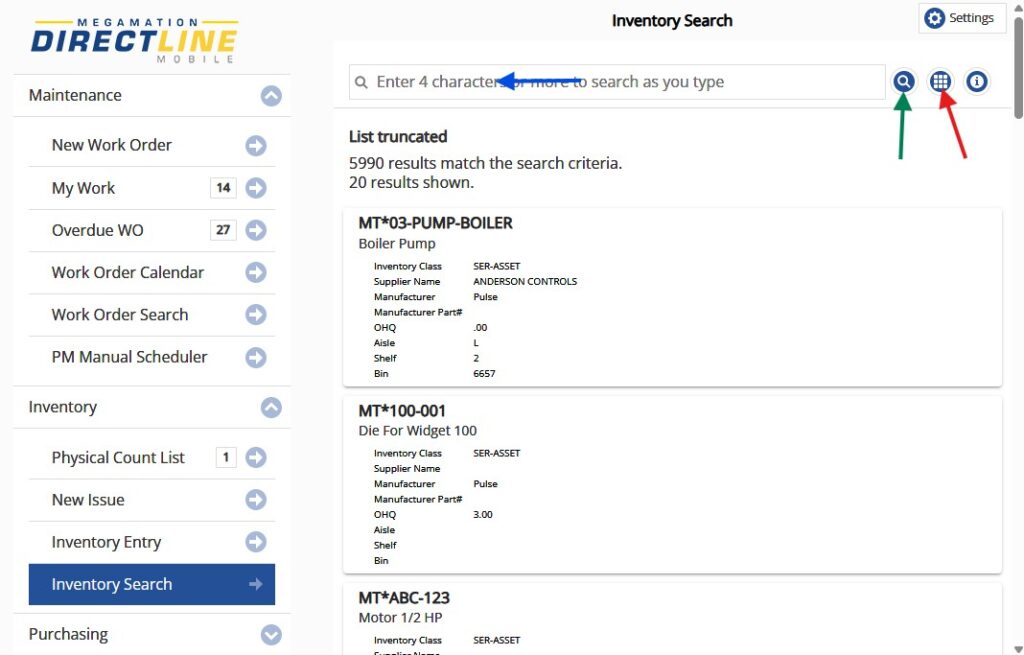
The search screen has a number of important features Noted By the arrows
Blue – Type four characters to search within the displayed list
Green – Hit the Search button to perform the search.
Red – Use this button to display the filter screen. Filters added here will be applied when you hit the Search button. The keyword search will then be applied to these results
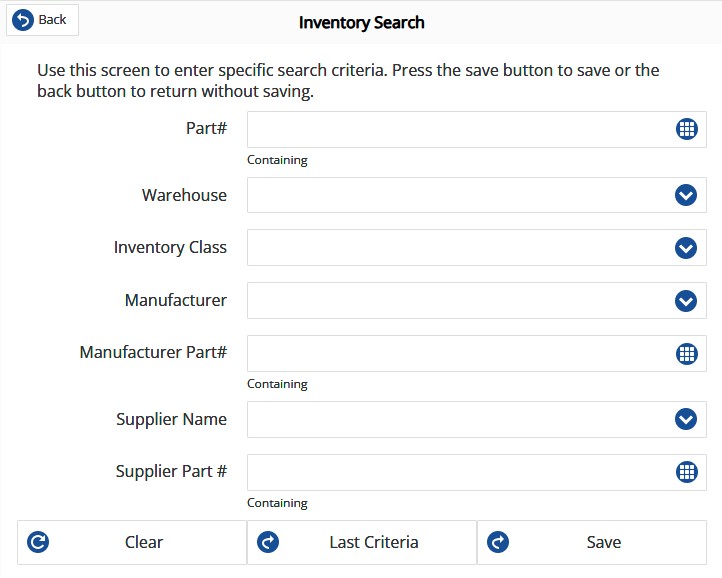
The Filter Screen
Similar to the original search screens, enter one or more criteria to narrow down search results. All of the part number fields are “Containing” fields, meaning you can enter part of the number to see results containing what you entered, rather than an exact match.
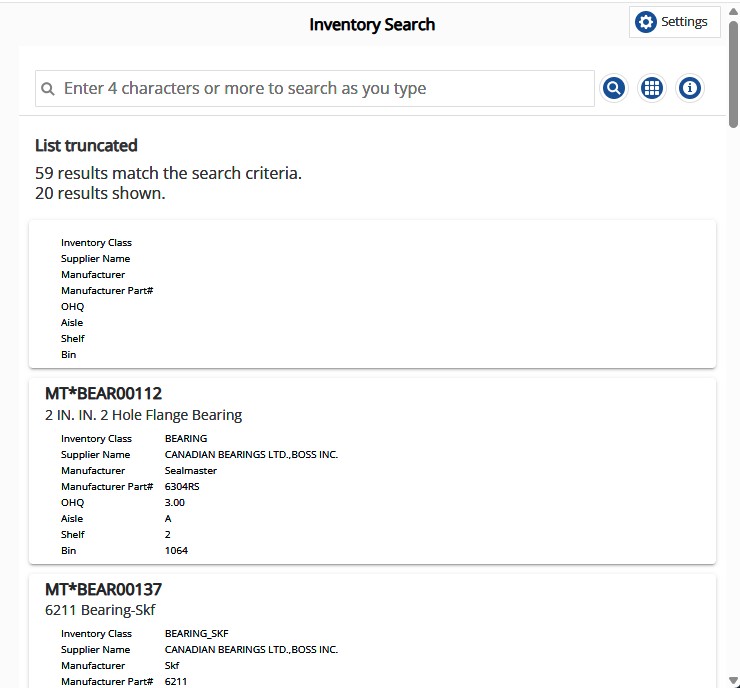
Hit Save to return to the results screen, which now displays the results of your search. Enter 4 or more characters in the search box to search within your results.
Select an item from the list by tapping on it to display the Inventory Entry.