
In Directline Mobile use the menu on the left to navigate to:
- Inventory
- Physical Count list
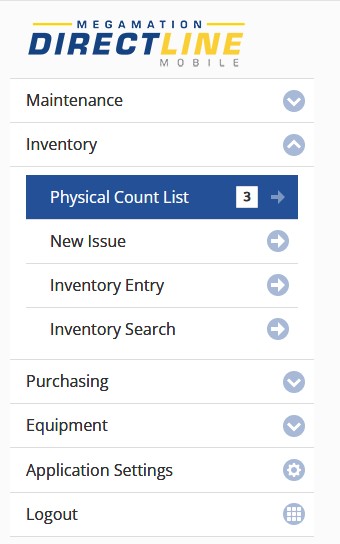
Choose the count from the list.
Here the full list of parts in the count is displayed. Use the next and Previous buttons at the bottom of the screen to scroll through the list if there is more than one page.
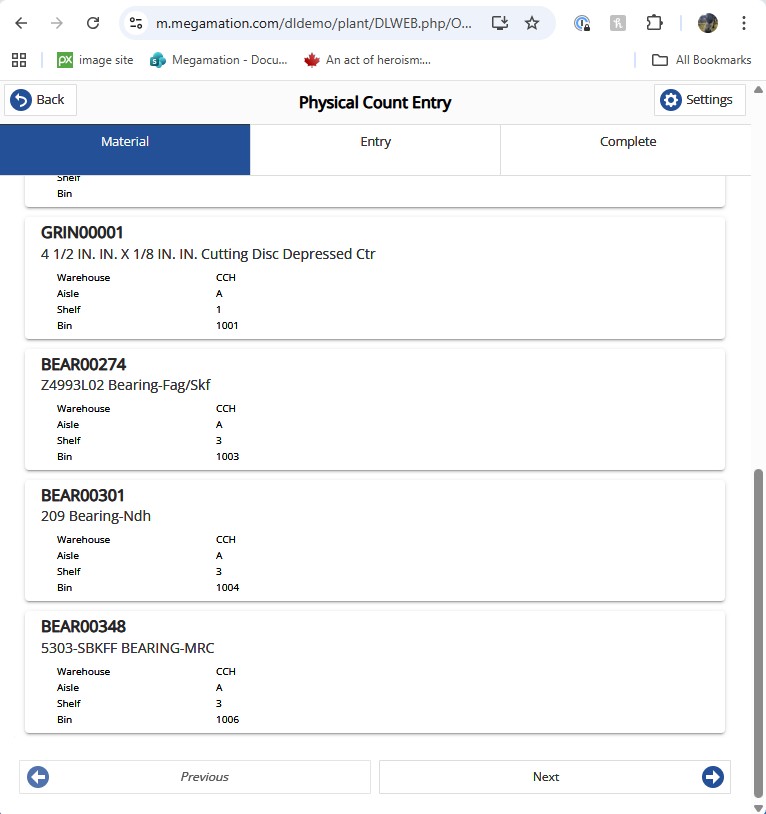
To begin entering counted quantities, click on a line. Enter the counted Qty in the OHQ Counted box.
Hit Save to continue to the next part.
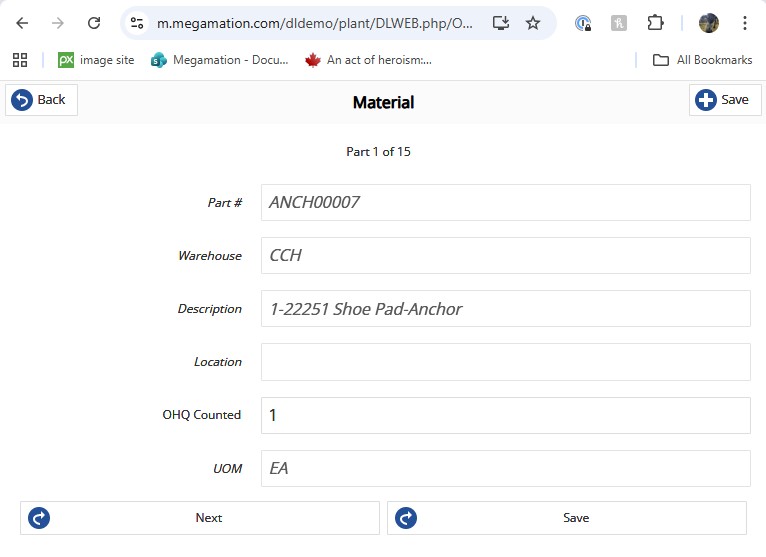
To skip a part, hit Next.
Once all parts are counted, return to the desktop for the next step.
If parts were counted from mobile, all counted quantities can be viewed by going to the Batch Entry screen. When all parts are counted, check the Count complete box. And hit save.