
Once counts have been entered, either from the Directline Mobile or the Batch Entry, On Hand Quantity can be updated from those counts from the Update screen.
Navigation
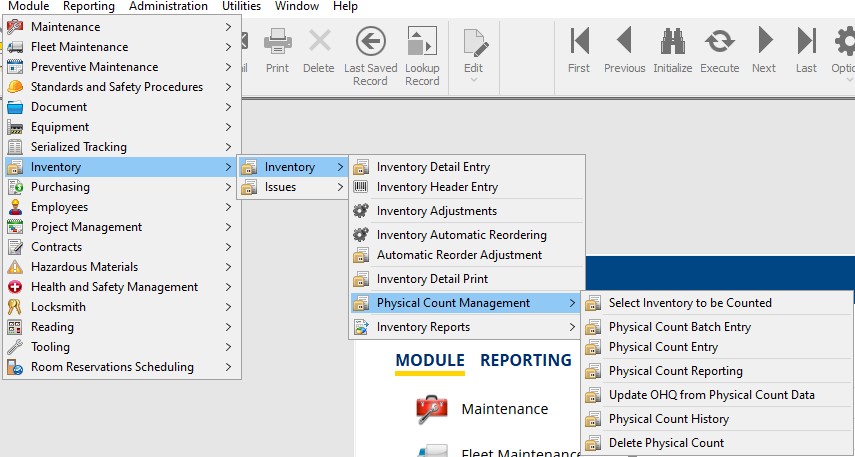
Access the screen by going to:
- Module
- Inventory
- Physical Count Management
- Update OHQ from Physical Count Data
Updating Inventory OHQ
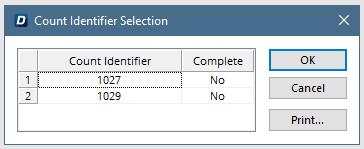
Select the count from the list of available counts.
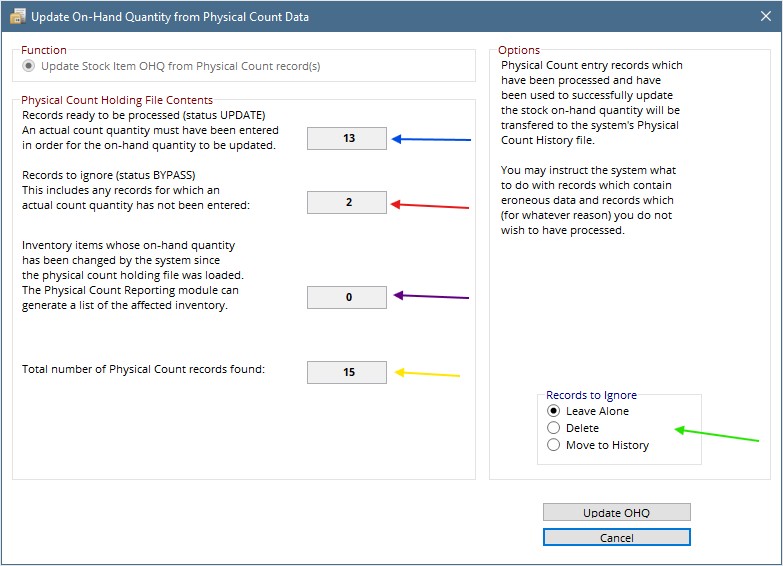
Records ready to be processed – This is the number of items where counted quantities have been entered.
Records to Ignore – This is the number of items where a count has not been entered. These items will be bypassed.
Items whose OHQ has changed – This is the number of items whose OHQ has changed, either by being issued or received since the count list was created. There is a report in the Physical Count Reporting that will show this list of items.
Total Number – This is the total number of counts.
Records to Ignore (Radio Buttons) – Here choose what to do with the Records that will be ignored.
Hit Update OHQ to update the Inventory On Hand Quantities from the recorded Counts.