
This article will provide the steps to install Directline Mobile on the home screen of your Android device using the Chrome web browser.
Before you begin: Have your organization’s DirectLine Mobile web address and sign-in details ready. Connect
to Wi-Fi or mobile data, and use the browser shown above.
- Open your mobile site in Chrome
Enter the DirectLine Mobile address provided by your administrator. If you opened a link inside an email or another app, open it in Chrome first.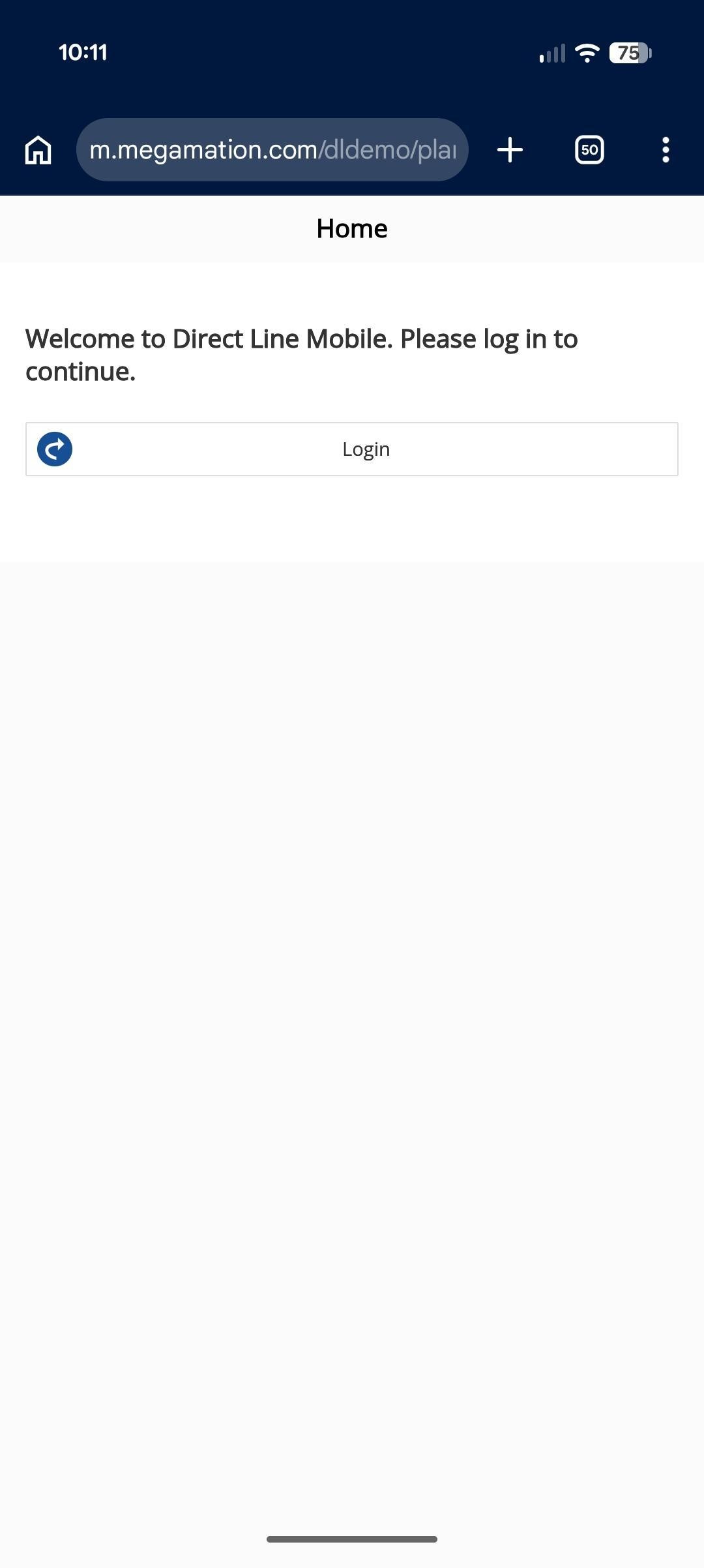
- If an install message appears, tap Install
You may see an invitation to install DirectLine Mobile as a PWA when you first open the website. Tap Install. Once installed, go to step 5.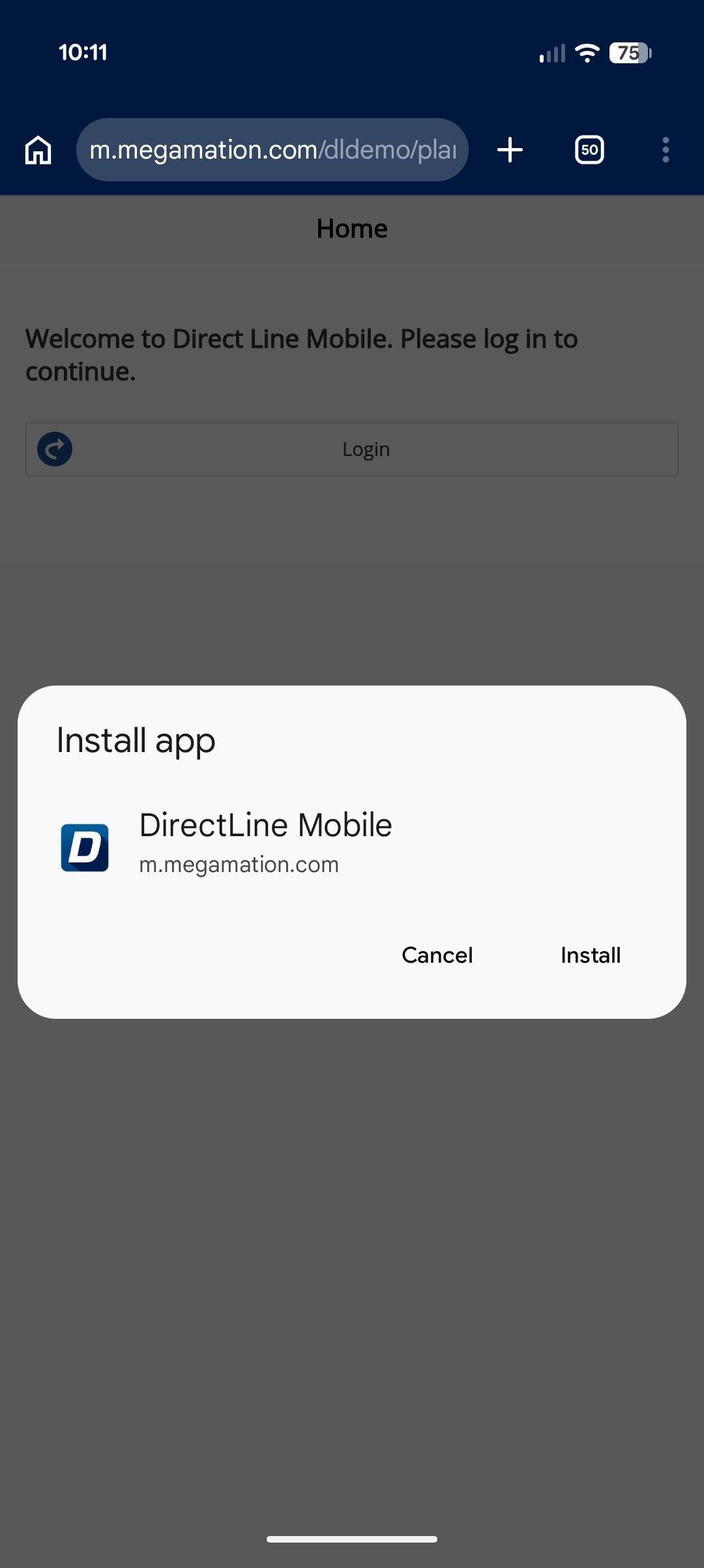
- No install message? Use the Chrome menu
Only if the install option is not offered, tap the three-dot menu. Choose Install and create shortcut >Install, Add to Home screen or Install app, depending on your Chrome version.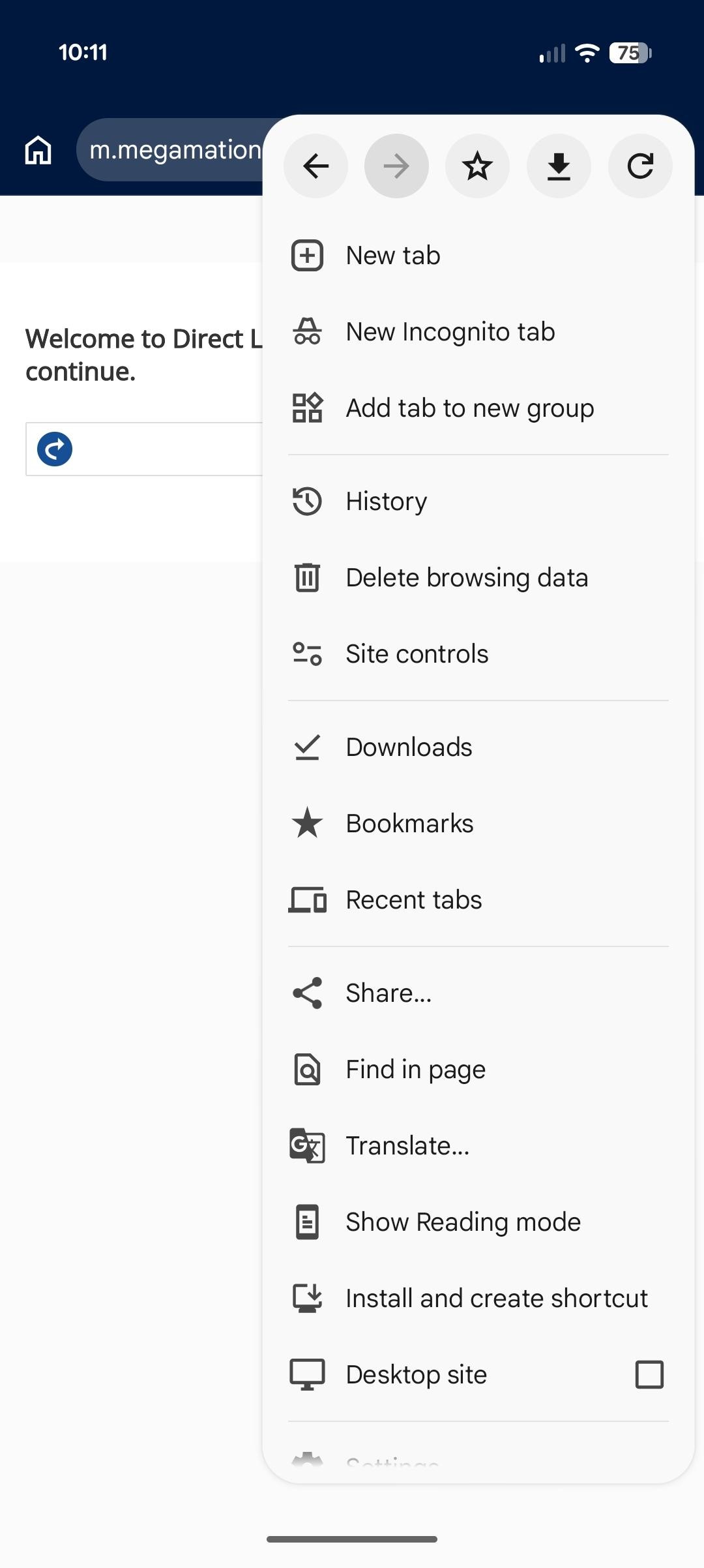
- Confirm if prompted
Follow any remaining prompts and tap Install or Add. If asked for a name, use DirectLine Mobile.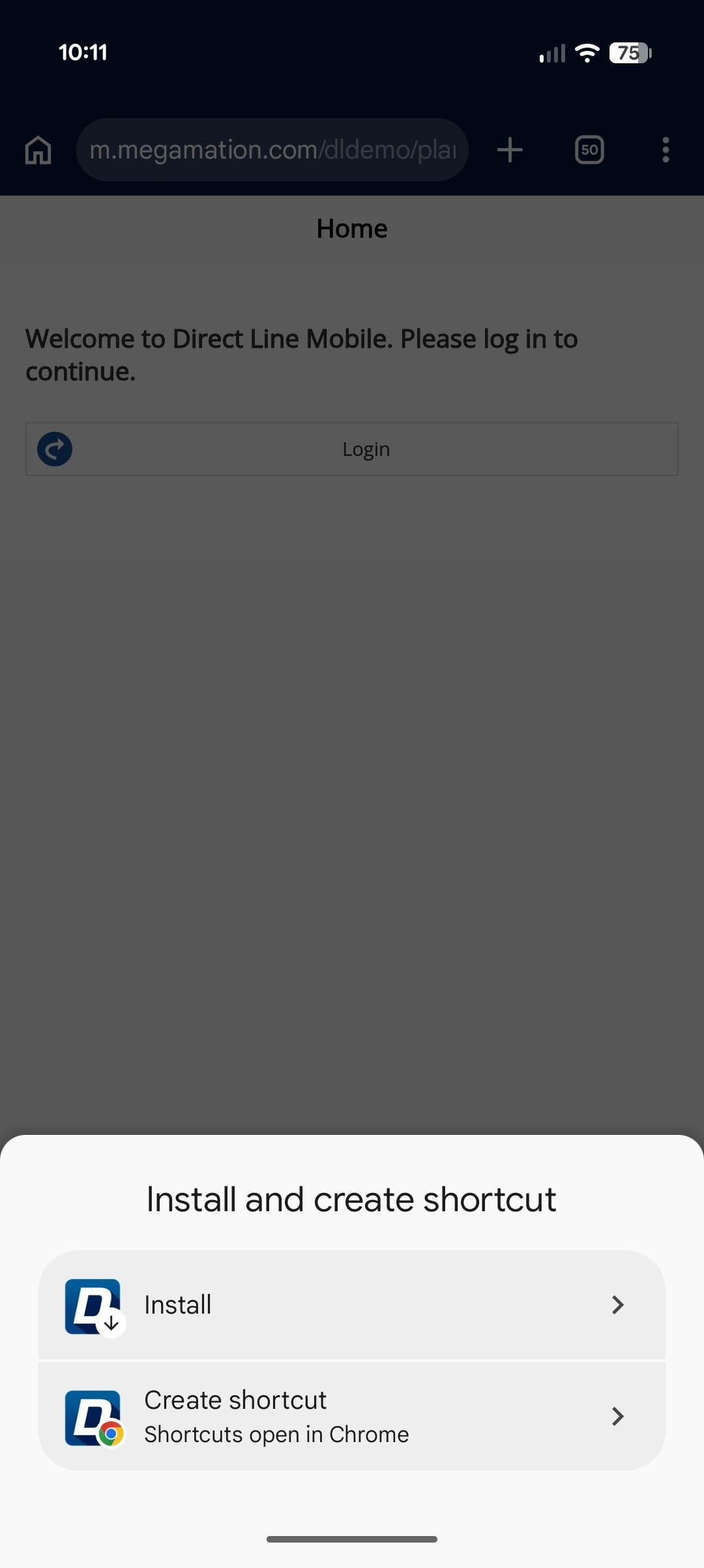
- Launch DirectLine Mobile
Tap the new icon on your Home Screen or in your app list. Sign in using your normal DirectLine credentials or your organization’s single sign-on process.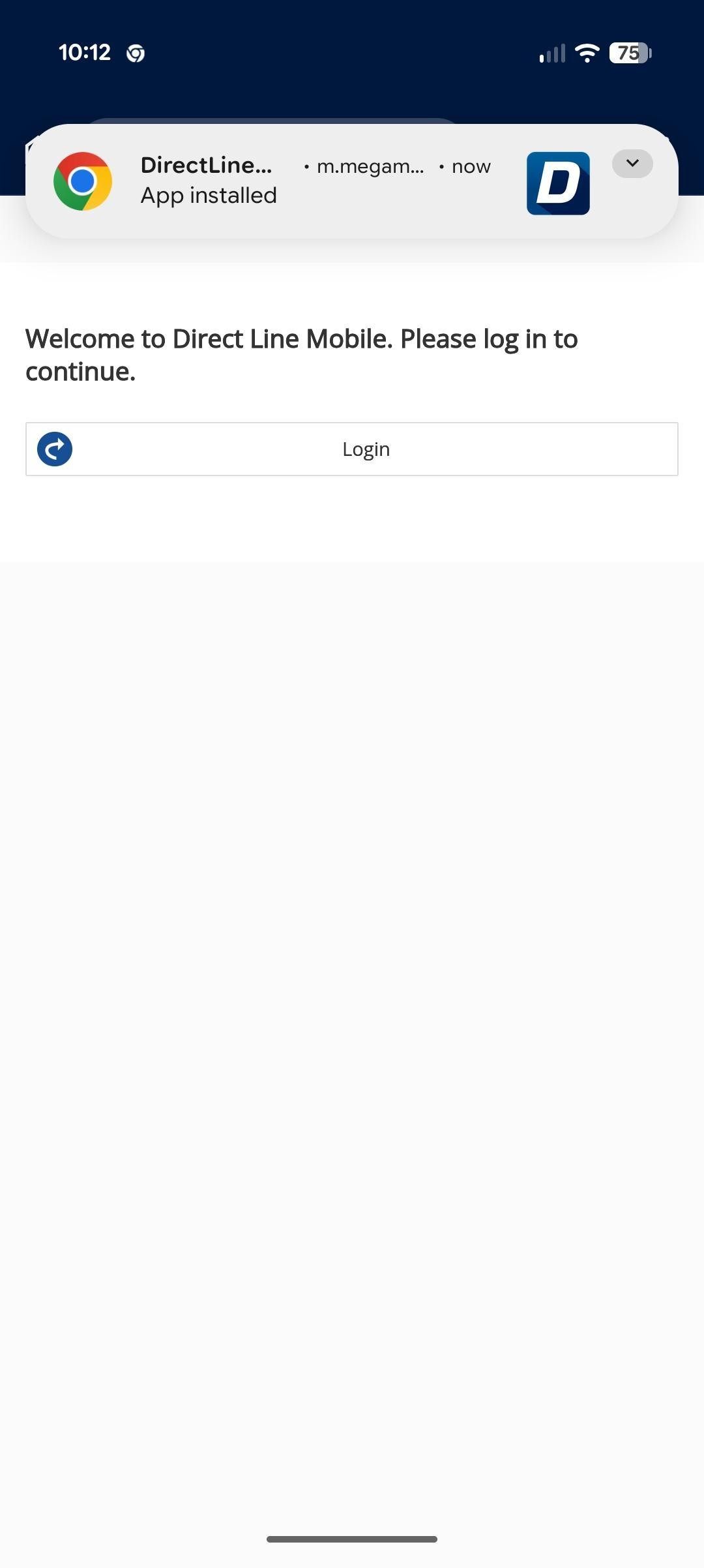
Need help installing or signing in?
Check that you are using your organization’s correct mobile address. If only Create shortcut appears, it adds a
shortcut; ask your administrator about PWA availability. For a managed device or missing installation option, contact
your IT team or Megamation Support.