
This article will provide the steps to install Directline Mobile on the home screen of your Apple device using the Safari web browser.
Before you begin: Have your organization’s DirectLine Mobile web address and sign-in details ready. Connect
to Wi-Fi or mobile data, and use the browser shown above.
- Open your mobile site in Safari
Enter the DirectLine Mobile address provided by your administrator. If you opened a link inside an emailor another app, open it in Safari first.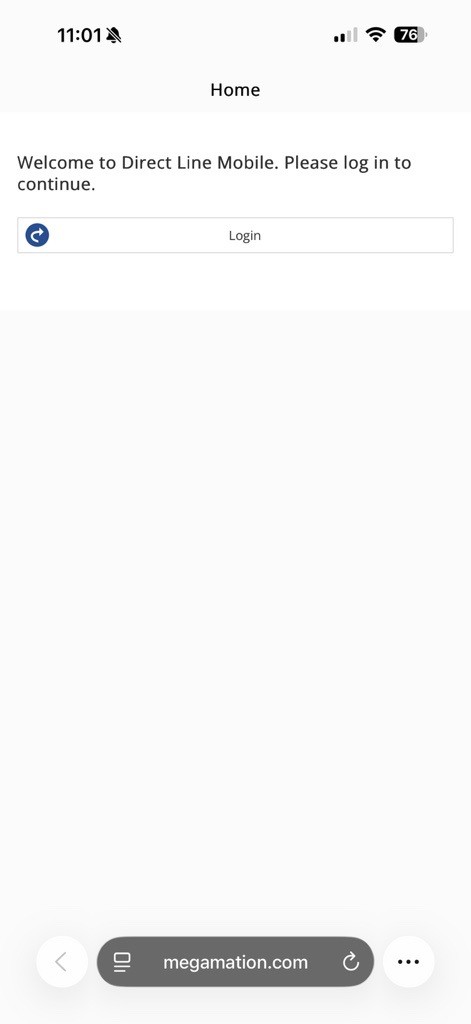
2. Open the Share menu
Tap Share (a square with an upward arrow). Depending on your Safari layout, you may first need to tap
the More or Page Menu button, then Share.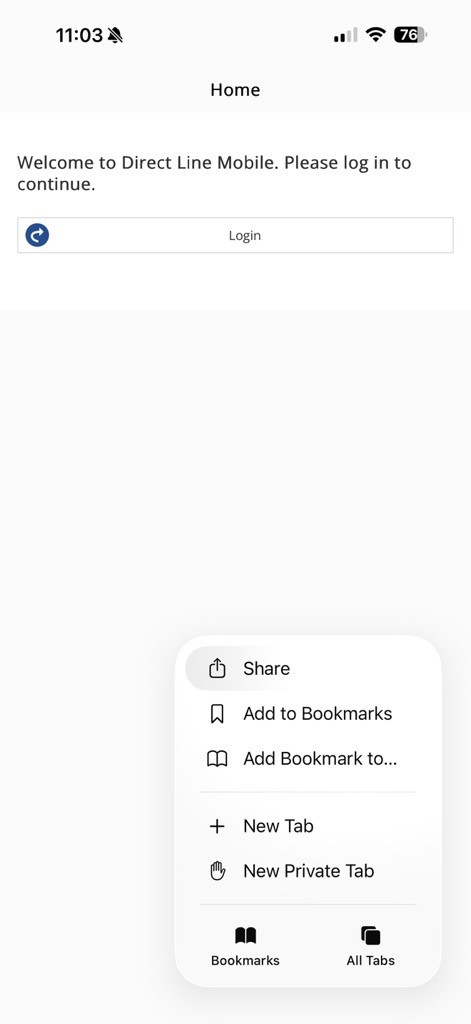
3. Choose Add to Home Screen
Apple devices use this menu instead of an automatic install prompt. Scroll down and tap Add to Home
Screen.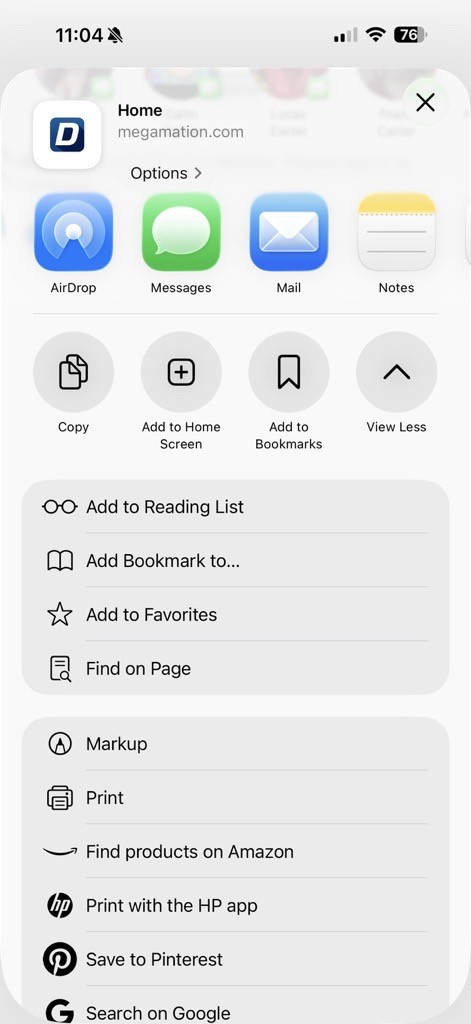
4. Confirm the installation
Use a recognizable name, such as DirectLine Mobile. If Open as Web App is shown, turn it on. Tap
Add.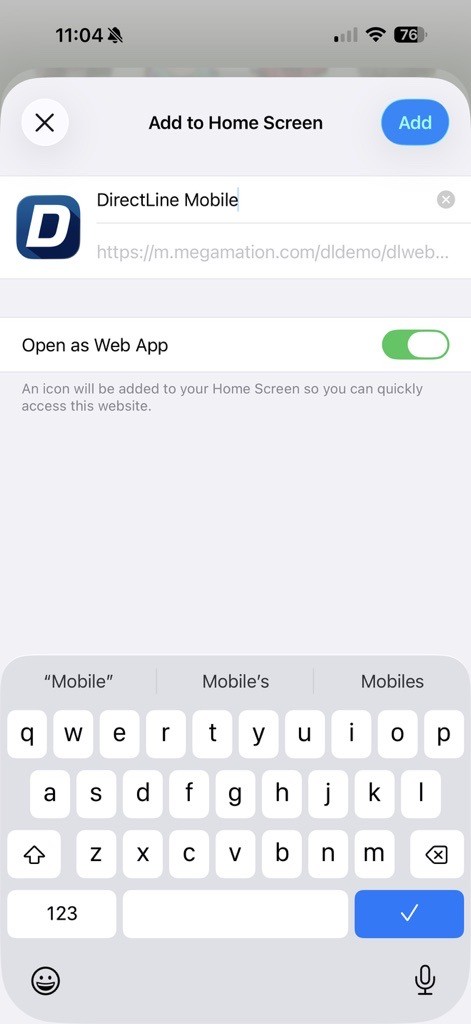
5. Launch DirectLine Mobile
Return to your Home Screen and tap the new icon. Sign in using your normal DirectLine credentials or
your organization’s single sign-on process.
Can’t find Add to Home Screen?
Scroll to the bottom of the Share menu, tap Edit Actions and add Add to Home Screen if available. On a managed
device, your IT team may need to allow this action. Menu wording varies by software version.