
Use this screen to receive items on a Purchase Order. This is also where POs will be marked as complete.
Navigation
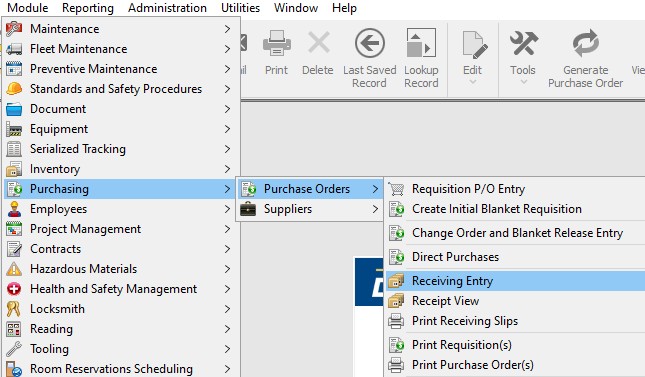
Open the Receiving Entry screen by going to:
- Module
- Purchasing
- Purchase Orders
- Receiving Entry
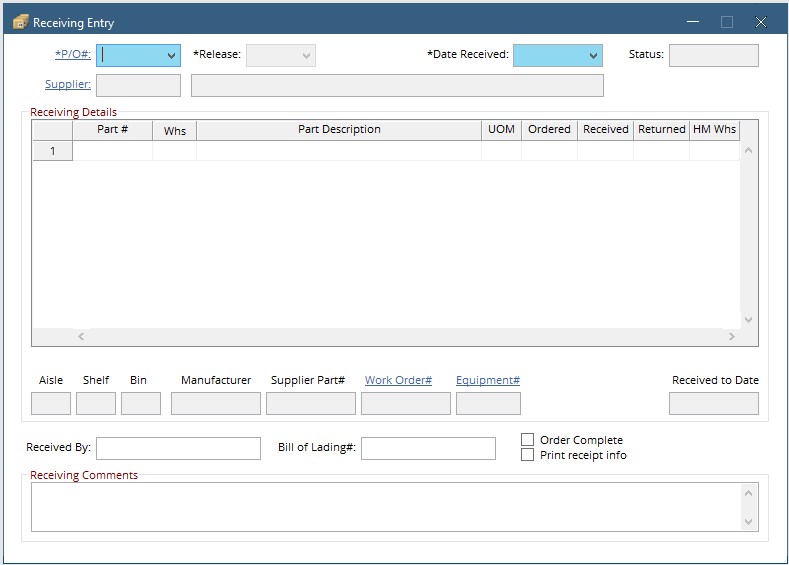
Locating A PO
To locate a PO to receive, type the PO number in the PO # box
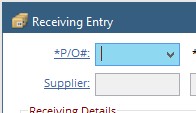
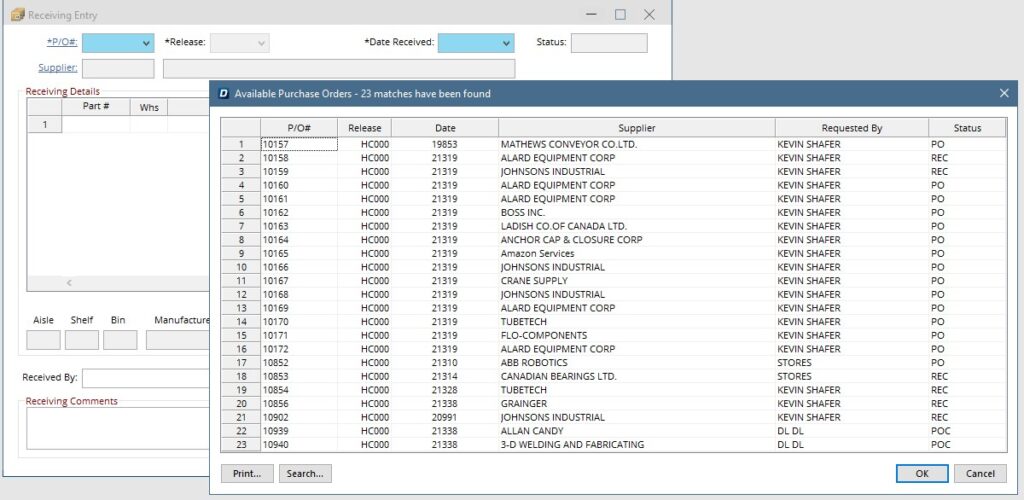
Or click the drop-down and choose from the list of open purchase orders.
- Recieving an Item
- Returning an Item
- Closing a PO
To receive an item, enter the quantity of that item that has been received in the received column (Blue Arrow) of that line. Below, there is a box (Red Arrow) that shows how many of that item have previously been received. Note: The system will allow receiving a higher quantity than what was originally ordered.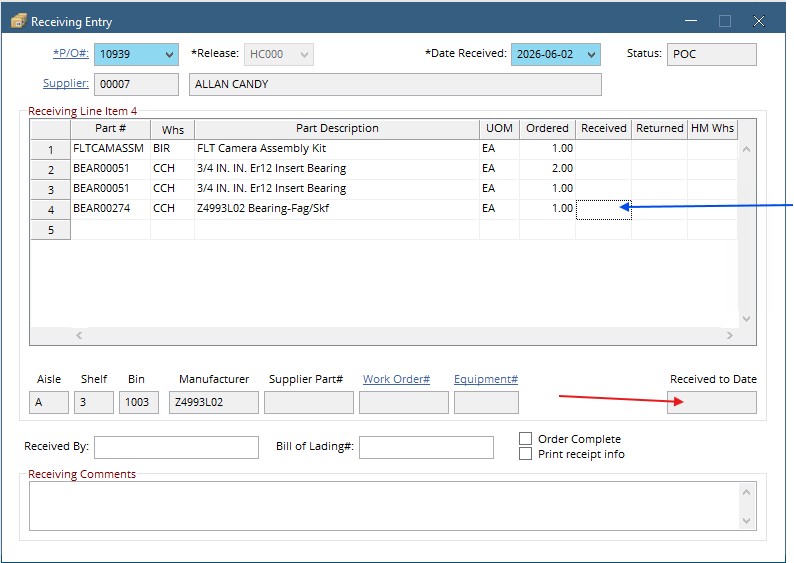
To return an item, enter the quantity to be returned in the Returned column (Red Arrow) of the line. Below, There is a Below, there is a box (Blue Arrow) that shows how many of that item have previously been received; only these can be returned.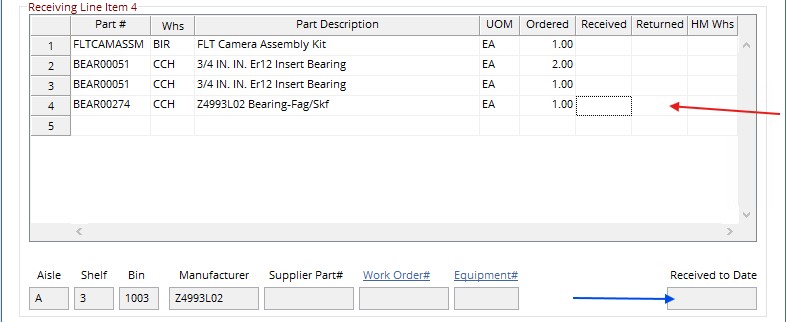
One important part of the receiving screen is that this is where a PO gets completed.
To complete a PO check the order complete box before saving the Receipt. This will change the status of both the PO and the requisition to Complete.
Note: once a PO has been completed, it can no longer be modified. If the PO or the receipt need to be modified the PO will need to be reopened in the Reopen cancelled/completed PO screen.