
This article will explain the setup and use of Readings to trigger PM.
Setup
1. Equipment Entry
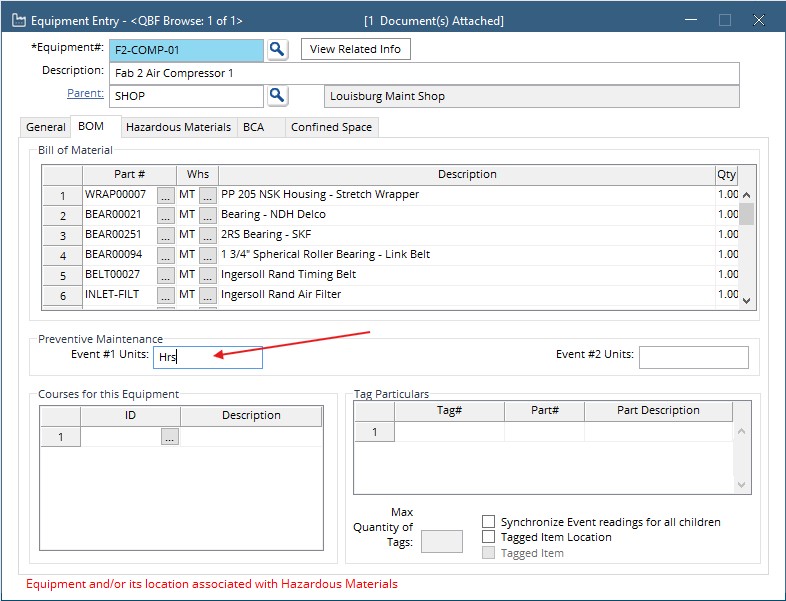
On the Equipment Entry screen go to the BOM tab. Fill the Event #1 Units field with the name of the units to be tracked. for example, Hours(Hrs) or Mileage(Mi). This is for display purposes on the PM and event entry screens.
2. PM Entry
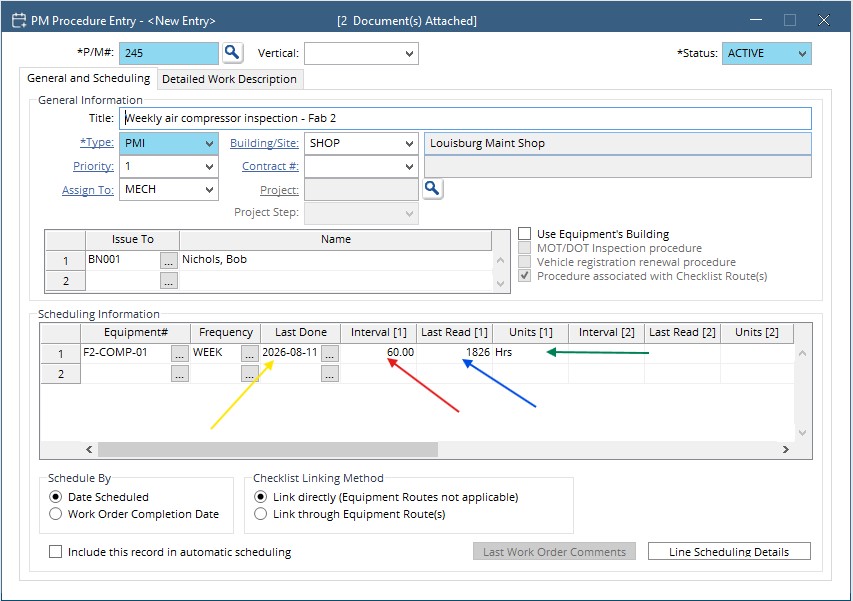
The PM Detail Entry screen is where the schedule for the PM is defined. When scheduling by events the Interval and Last Read columns must be filled.
Interval – This number will be used to determine if the PM is due when the scheduler is run. The pm will schedule by the frequency or the interval, whichever comes first.
Last Read – Set this to the last reading taken when the PM is first setup. The Last Read will update when the PM is scheduled.
Units – These are the units the readings are taken in. This field will only be filled if the units are set on the Equipment Entry screen before the equipment is added to the PM
Last Done – This is used to trigger the PM from the frequency. PM will trigger from the frequency or the Interval, whichever comes first. TIP: the frequency field is mandatory, so if you want to make sure the PM schedules by the interval rather than frequency, then set the frequency to something unreachable, like 10 years.
Recording Readings
Desktop
Go to:
- Module
- Equipment
- Event Entry
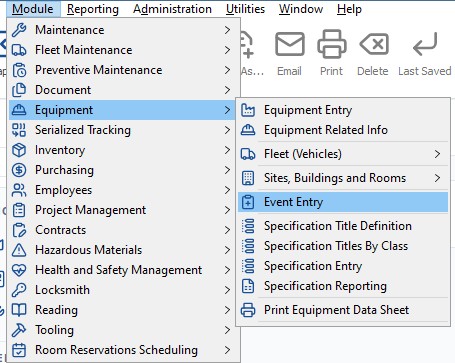
Event Entry
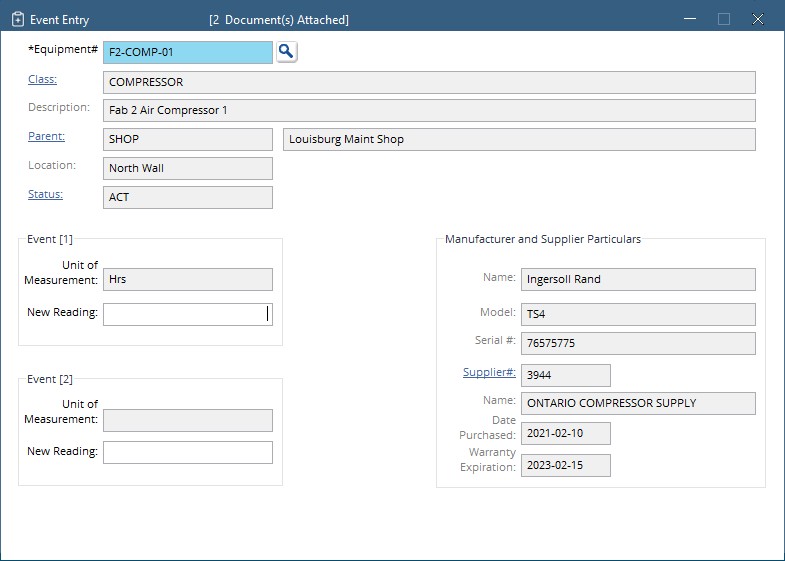
Enter the Equipment number, or use the Equipment search by clicking the magnifying glass button next to the Equipment Number field. Hit Enter.
In the “New Reading” field enter the reading.
Hit Save.
Mobile
To colloect Readings from mobile, they need to be entered on a checklist.
Create a Checklist with one task being of the type EVENT1.
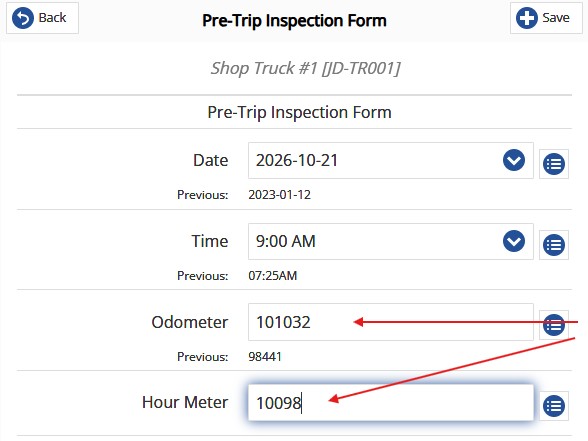
Enter the reading in the field on the checklist. Once the checklist is completed, the event readings will be updated in the database.
When the PM Scheduler runs, it checks the last recorded reading against the “Last Read” on the PM Entry, and if the Interval is met, the PM will be scheduled.